Publishing & Scheduling Content
Scheduling is the VXE's superpower: build your campaign today, set the dates, and it goes live — and comes down — by itself, at the minute you chose. This page covers the rules that decide what shows when, how to set schedules on both surfaces, and how to preview everything before customers see it.
Will my content show? The five conditions
A piece of scheduled content appears only when all five are true:
- It is published (not a draft, not unpublished).
- It has at least one schedule.
- The current date and time fall inside one of its schedule windows.
- The viewer's platform matches (e.g. iPhone content on an iPhone).
- The placement matches — the right slot on the right page or screen.
If content isn't where you expect it, walk that list top to bottom — it resolves most mysteries. (More in Troubleshooting.)
Along the way, content moves through five states:
| State | Meaning |
|---|---|
| Live | Published and inside an active schedule window — customers can see it now |
| Scheduled | Published, but its window hasn't started yet |
| Expired | Its windows have all ended |
| Unpublished | Manually taken down, regardless of schedule |
| Draft | Never published |
Set a schedule
On the web (Web VXE)
- Open your content in the Live Editor side panel (create new, or edit an existing item) and scroll to Schedules.
- Click Schedule to add a window, then set:
- Online from — the date and time it goes live.
- Online to — the date and time it comes down. Must be after the start.
- Under that schedule, use Add Schedule Order to choose Category & Location, Web Slots, and display order on the page.
- Save (or Publish) after your changes. Add multiple Schedule rows for split campaigns or rotations.
In the mobile app (Mobile App VXE)
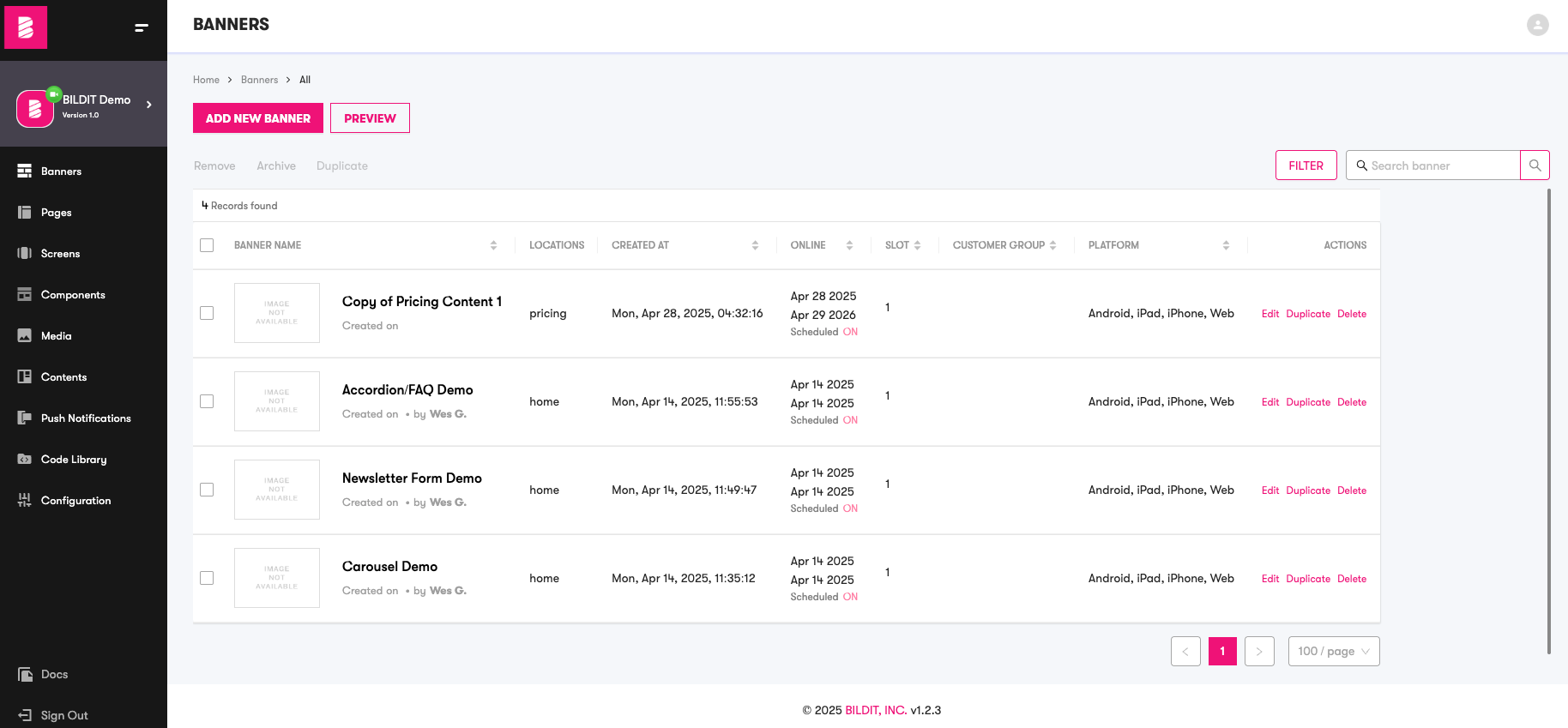
- Open your content on the Scheduled Content tab and scroll to Schedules (same section name as on web).
- Click Schedule to add a row:
- Start Date and End Date — when it's live (end must be after start).
- Slot — a number; lower numbers display higher (slot 1 outranks slot 2).
- Save or Publish after each change. To remove a schedule row, delete it — but keep at least one: content needs a schedule to publish at all.
On both surfaces, the times you pick are in your timezone. Coordinating a launch across regions? Agree on one reference timezone with your team before anyone types a date.
Multiple schedules & campaign patterns
One piece of content can carry several schedules, which unlocks real campaign patterns:
- Split campaigns — the same sale promo runs Jan 1–7 and again Jan 15–22: two schedules, one piece of content.
- Weekends only — one schedule per weekend of the promo.
- Time-of-day rotation — the same content in different slots at different hours: Morning 6am–12pm in slot 1, afternoon in slot 2, evening in slot 3.
If two items are scheduled into the same slot at the same time, the system won't warn you — you find out when the page looks wrong. There's also no bulk editing: every schedule is edited one at a time, so review overlaps manually. A shared campaign calendar is the cheapest insurance there is; then verify with date preview (below).
Preview before it goes live
Never publish blind — the VXE can show you exactly what customers will see, on any device, at any date.
Web: device preview
Use the ribbon controls to flip between Desktop, Tablet, and Mobile views. Template content updates live in all three as you edit.
Web: time travel with the date picker
The Date and Time Picker in the toolbar shows the page as it will look at any past or future moment. Use it to check:
- The day your campaign starts — and the minute one campaign hands off to the next
- Overlapping schedules in the same slot (this is how you catch the conflicts the system doesn't)
- Edge cases: midnight transitions, daylight-saving changes, month and year boundaries
Mobile: preview by date
Open your content, click Preview, and pick a date — a live app preview alongside shows exactly what the app will display then.
Mobile: email a preview to anyone
Need sign-off from someone without a VXE login? Send them the preview by email: click Preview → select the scheduled content event → Send Preview → pick the date → Continue → enter their email → Send.
Going live — and what happens after
Publish when you're happy with the preview. From there the schedule runs itself:
- Expiry is automatic. When all of an item's schedule windows have ended, it stops displaying immediately, and a daily cleanup moves it out of your live list into Archived. Nothing lingers on your site, and your workspace stays tidy.
- Un-launching is instant. Need something gone now? Click Unpublish or set status to Unpublished — faster than editing schedule dates.
Staging → Production: replication
If your team builds content in a Staging environment first (a safe sandbox), an administrator promotes it to Production with Replication: open Admin → Replications, then Replicate Now for an immediate sync, or Schedule Replication for a chosen time — history and statuses are tracked on the same screen.
What's in Staging replaces what's in Production. Review Staging carefully before replicating — and replicate at off-peak hours for busy sites.