How To Preview Scheduled Content by Date
Open and prepare scheduled content
- On the Sidebar Menu select Scheduled Content
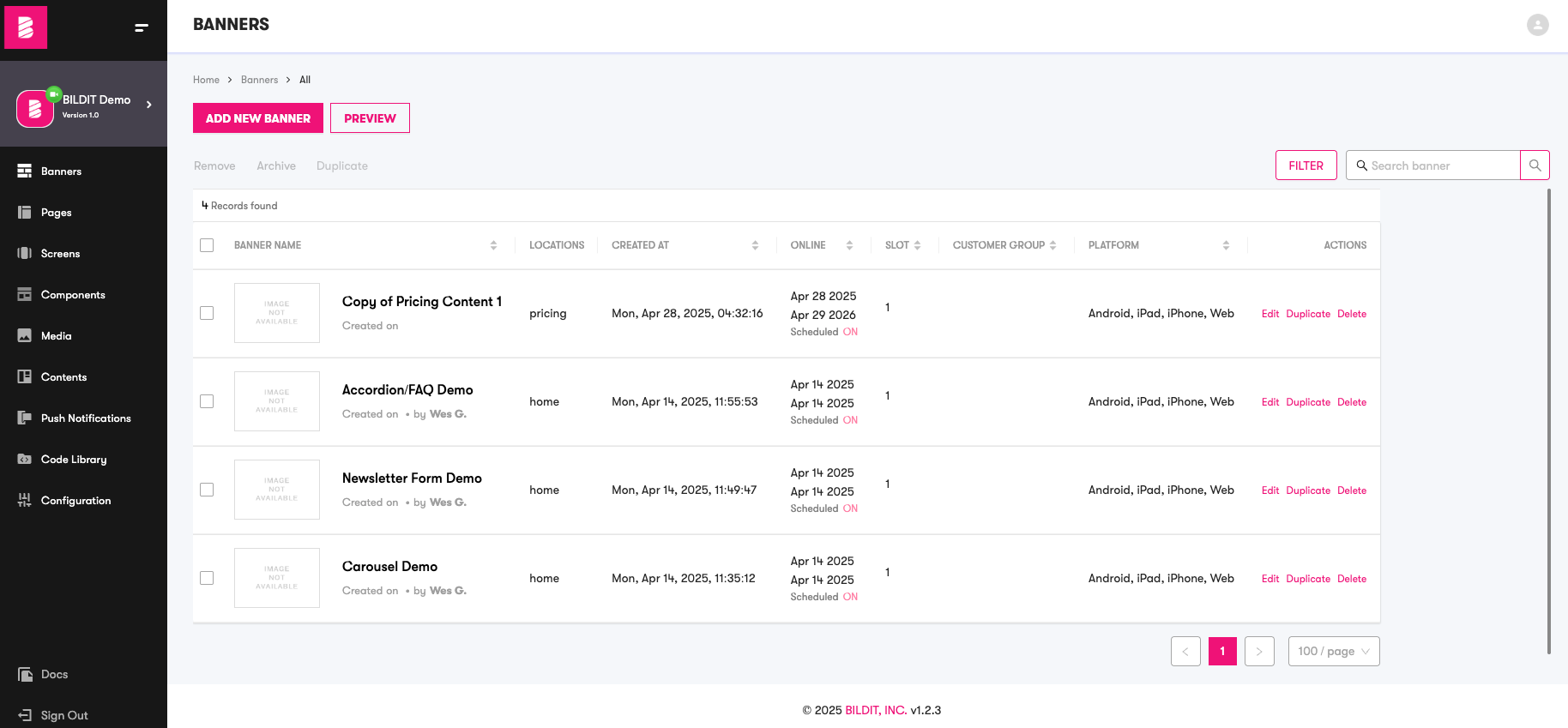
- If necessary, click on ADD NEW SCHEDULED CONTENT or click on the existing scheduled content item that you want to update.
- Make sure that all the details have been filled
Preview by date
- Click on PREVIEW
- Select the date that you would wish to preview
- Note the changes in the Mobile app preview on the side
Previewing Template Scheduled Content
When previewing template-based scheduled content by date:
- Variable Changes: See how template variables affect the scheduled content appearance
- Responsive Preview: Check how the template adapts to different device sizes
- Device Switching: Use the device switcher to preview across Desktop, Tablet, and Mobile
- Real-time Updates: See variable changes reflected immediately in the preview
Learn more about Scheduled Content Templates and their preview capabilities.