Firebase Cloud Messaging
Setting up a Firebase account
After signing in to the Google account, you need to set up a Firebase console following the steps below.
- Go to the Firebase console website
- If you don't have any existing project, you can create one by clicking Create a project. Otherwise, select the project you want to use in your app.
- Enter the project name
- Read the terms of service for use of Firebase Services and accept them if you agree, then click Continue
- Enable Google Analytics for your Firebase project and click Continue
- Configure Google Analytics (select the Default Account for Firebase or Create a new account) and click Create project
- The loader for creating the project will begin. After it finishes, the loader closes and you will see that the project is ready. Then click Continue
- You will be redirected to the Firebase project
Adding Android or iOS app to the Firebase project
To set up the project for Android or iOS, you need to select the appropriate icon for the platform.

Android app
- Select the Android icon and a sheet will open up
- Enter the Android package name (e.g.
com.companyName.mobileAppName) then click Register app - Download the config file by clicking Download google-service.json which will be added to your mobile app. After you download the file click Next
- Add Firebase SDK to your mobile app.
Project-level build.gradle (PROJECTNAME/build.gradle):
buildscript {
  repositories {
    // Check that you have the following line (if not, add it):
    google()  // Google's Maven repository
  }
  dependencies {
    ...
    // Add this line
    classpath 'com.google.gms:google-services:4.3.10'
  }
}

allprojects {
  ...
  repositories {
    // Check that you have the following line (if not, add it):
    google()  // Google's Maven repository
    ...
  }
}
Click on Next
- Finish the steps by clicking Continue to the console

iOS app
If you have already added an app, you can select + Add App or select the iOS icon and complete the sheet.
- Enter the Apple Bundle ID (e.g.
com.companyName.mobileAppName) then click Register app - Download the config file by clicking Download GoogleService-Info.plist which will be used on the mobile app and click Next
- Add Firebase SDK to your mobile app.
Google services use CocoaPods to install and manage dependencies. Open a terminal window and navigate to the location of the Xcode project for your app.
Create a Podfile if you don't have one:
pod init
Open your Podfile and add:
# add pods for desired Firebase products
# https://firebase.google.com/docs/push-notifications/ios/setup#available-pods
Save the file and run:
pod install
This creates an .xcworkspace file for your app. Use this file for all future development on your application.
Click on Next
- Add initialization code to your mobile app:
To connect Firebase when your app starts up, add the initialization code below to your AppDelegate.m file.
@import UIKit;
@import Firebase;

@implementation AppDelegate
- (BOOL)application:(UIApplication *)application
    didFinishLaunchingWithOptions:(NSDictionary *)launchOptions {
  [FIRApp configure];
  return YES;
}
@end
Click on Next
- Finish the steps by clicking Continue to the console
Set up a Billing Account for Firebase
In case you have not set up billing for your created project and you would wish to add an account select Spark plan next to the project name or select Upgrade on the bottom left of the Firebase console home page. It will open up a modal for selecting the billing.
- Select Blaze Plan from the modal then select Continue which you will be redirected to set up your billing profile.
- Select the country where your billing address is located then Confirm
- Fill in the address details on the form and enter card details for the payment method
- Select CONFIRM PURCHASE after filling all the details
Firebase Cloud Messaging
To get the Sender ID and Server Key for sending notifications and using other cloud services:
- Select settings as shown in the image above, then select Project settings
- After navigating to Project settings, select the Cloud Messaging tab
- Get the Server key and Sender ID to be used in the configuration for push notifications
- Add Pub/Sub on the Firebase project (required for push notifications)
- For iOS, you require APNs Certificates. You would need to have an Apple Developer account to generate an APNs certificate.
- If you have a developer account and have generated a certificate, in the Apple App, select Upload
- On the modal that opens, browse or drag the certificate, enter key ID and team ID, then select Upload after filling all required details
- After entering the details, you can use the Server Key and Sender ID for Cloud Messaging.
Adding Config for Firebase Cloud Messaging
From BILDIT Visual Experience Engine go to:
- Go to Configuration from the side Menu
- Select Push Notifications
- If you don't already have the service configurations available, you can select Create Push Notification Config
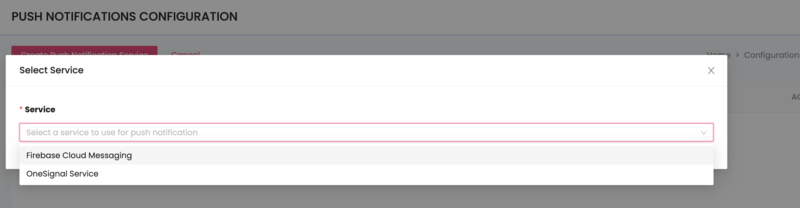
- Select the service for which you'd like to add a configuration.
If you already have the push service configuration for the FCM, it is disabled in the dropdown list. You can either edit the current configuration from the list or delete it and add a new FCM configuration.
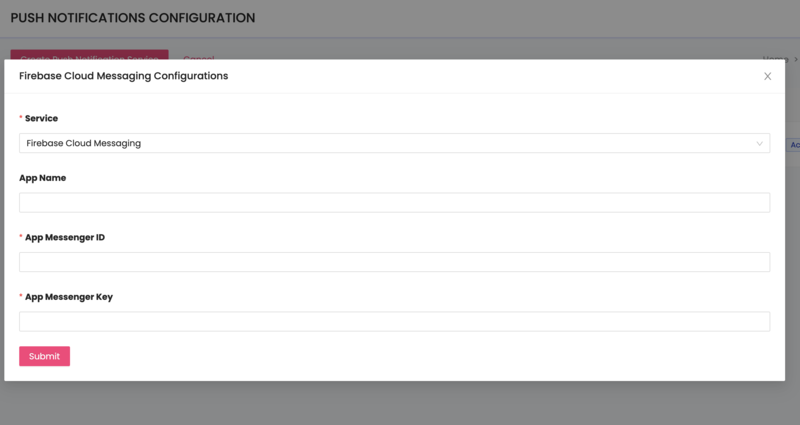
- After selecting the service, enter the App Name, the App Messenger ID as the Sender ID, and the App Messenger Key as the Server Key. The Server Key and Sender ID are copied from your earlier config.
- On success, the configuration will be added.

- If you have multiple configurations set up, make sure the correct FCM configuration is active before sending push notifications.
Editing Config for Firebase Cloud Messaging
After following the steps above, if there is already an FCM push service in the list:
- To edit Push Service Configuration, click on the pencil icon from Actions.

- FCM modal will pop up with the update fields
- Make the changes you would like to use.
- Click Update.
BILDIT Visual Experience Engine allows ONLY ONE configuration per service to allow consistency for the app
Setting Active Push Service Configuration
If you have multiple push services (e.g., FCM, OneSignal, or Airship) and FCM is not currently set as the active push service, you can set it as active.
- Click on Set Active, and on success, you'll see the change marked with the Active tag.