Airship
Requirements
- You can create or login to an Airship account using the links below:
- You will also need a Firebase Account to use Server Key and Sender ID to create an app on Airship platform.
Creating a project on Airship
To create a project on Airship you need to login to your account or create an Airship account if you don't have an account yet.
- On login click Create Project
- On the form screen that opens up
- Enter the Project name
- Select Icon for your project
- Select Type of the project either Live or Test
- Choose Industry then Sub-industry
- Click on Create Project after finishing filling all the details
Add Platform
To send push notifications you need to add the platforms that you are going to send push notifications or in-app messages on.
Android Platform
- Go to Settings
- Select Mobile Apps on the Channels card.
- Select Android
- Add the Firebase Cloud Messaging (FCM) details that is:
- Google Firebase server key
- Google Firebase package name
- Click on Add Android and you will be notified upon successfully adding the FCM.
iOS Platform
- Go to Settings
- Select Mobile Apps on the Channels card.
- Select iOS
- Click on Edit on the Certificate-based Authentication
- Enter Certificate password and upload Certificate.
These are the Apple APNs certificates that you are required to create. See how to generate APNs certificates for the full walkthrough.
- On finishing click on Save
Getting APP KEY and MASTER SECRET
- After logging in, open the app you want the App Key for
- Click on Settings
- On the right side of the screen there is a Product details section. Click on the Click to reveal button to reveal the MASTER SECRET and SECRET.
- You can now obtain all the details that are required to configure push notification on the mobile app.
- App Key
- Master Secret
- Secret
Set up Airship on mobile
For Airship you would need to install urbanairship-react-native
# using yarn
yarn add urbanairship-react-native

# using npm
npm install urbanairship-react-native --save
Android Setup
- Compile and Target SDK Versions:
- Airship now requires
compileSdkversion 31 (Android 12) or higher. Please update thebuild.gradlefile
- Airship now requires
android {
    compileSdkVersion 31

    defaultConfig {
        minSdkVersion 21
        targetSdkVersion 31

        // ...
    }
}
- Java 8 Source Compatibility:
- Airship now requires Java 8 language features across all SDK modules.
- Please update Android Gradle Plugin to version
3.0.0or higher and change the source and target compatibility for each module that uses Airship SDKs:
android {
    compileOptions {
        sourceCompatibility JavaVersion.VERSION_1_8
        targetCompatibility JavaVersion.VERSION_1_8
    }
}
- Modules using Kotlin will also need to set the target version of the generated JVM bytecode:
tasks.withType(org.jetbrains.kotlin.gradle.tasks.KotlinCompile).configureEach  {
    kotlinOptions {
        jvmTarget = JavaVersion.VERSION_1_8
    }
}
- Create the
airshipconfig.propertiesfile in the application'sapp/src/main/assets:
developmentAppKey = Your Development App Key
developmentAppSecret = Your Development App Secret
productionAppKey = Your Production App Key
productionAppSecret = Your Production Secret

# Notification customization
notificationIcon = ic_notification
notificationAccentColor = #ff0000
iOS Setup
- Install pods
cd ios && pod install
-
Add the following capabilities for your application target: Push Notification Background Modes > Remote Notifications
-
Create a plist
AirshipConfig.plistand include it in your application’s target:
<?xml version="1.0" encoding="UTF-8"?>
<!DOCTYPE plist PUBLIC "-//Apple//DTD PLIST 1.0//EN" "http://www.apple.com/DTDs/PropertyList-1.0.dtd">
<plist version="1.0">
<dict>
  <key>developmentAppKey</key>
  <string>Your Development App Key</string>
  <key>developmentAppSecret</key>
  <string>Your Development App Secret</string>
  <key>productionAppKey</key>
  <string>Your Production App Key</string>
  <key>productionAppSecret</key>
  <string>Your Production App Secret</string>
</dict>
</plist>
- Optional. In order to take advantage of the latest iOS notification attachments, such as images, animated gifs, and video, you will need to create a notification service extension by following the guide:
Enabling Notifications
Notifications by default are disabled to avoid prompting the user for permissions at an inopportune time. For testing purposes, you probably want to enable Notifications immediately to verify push is working:
Note: Push notifications are not supported on iOS simulators.
import {
  UrbanAirship,
  UACustomEvent,
} from 'urbanairship-react-native'

...

export default class Sample extends Component {
  constructor(props) {
    super(props);
    UrbanAirship.setUserNotificationsEnabled(true);
  }

  ...
}
Adding Config for Airship
From BILDIT Visual Experience Engine go to:
- Go to Configuration from the side Menu
- Select Push Notification Config tab
- If you don't have the service configurations available you may select Create Push Service.
- Select Airship as the Service you would like to configure
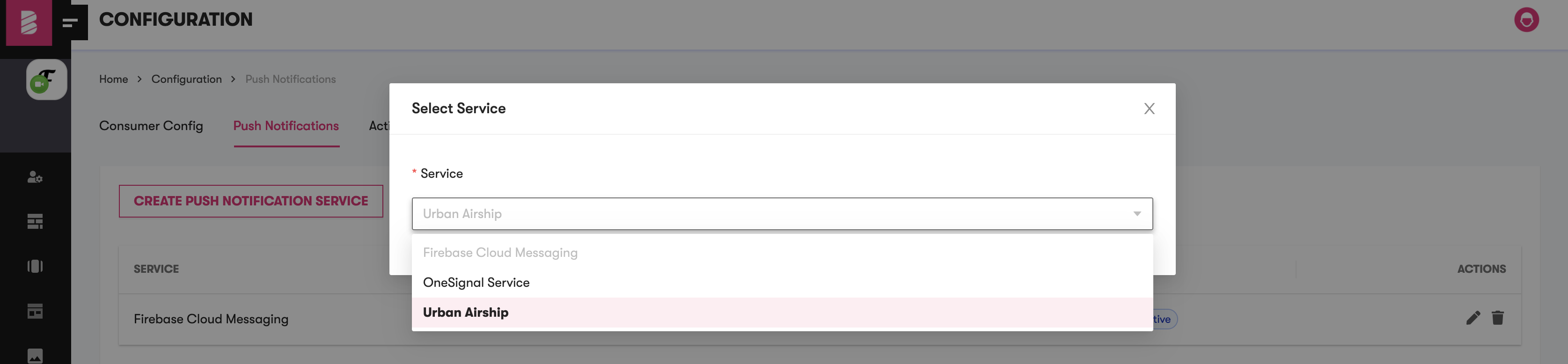
If you already have the push service configuration for the Airship, it is disabled in the dropdown list. You can either edit the current Airship configurations from list or delete and add new Airship configuration.
- On selection of the service, enter the App Name as the Project Name, enter the App Messenger ID as Airship App Key and enter the App Messenger Key as the Master Secret. Airship App Key and Master Secret are copied from earlier config.
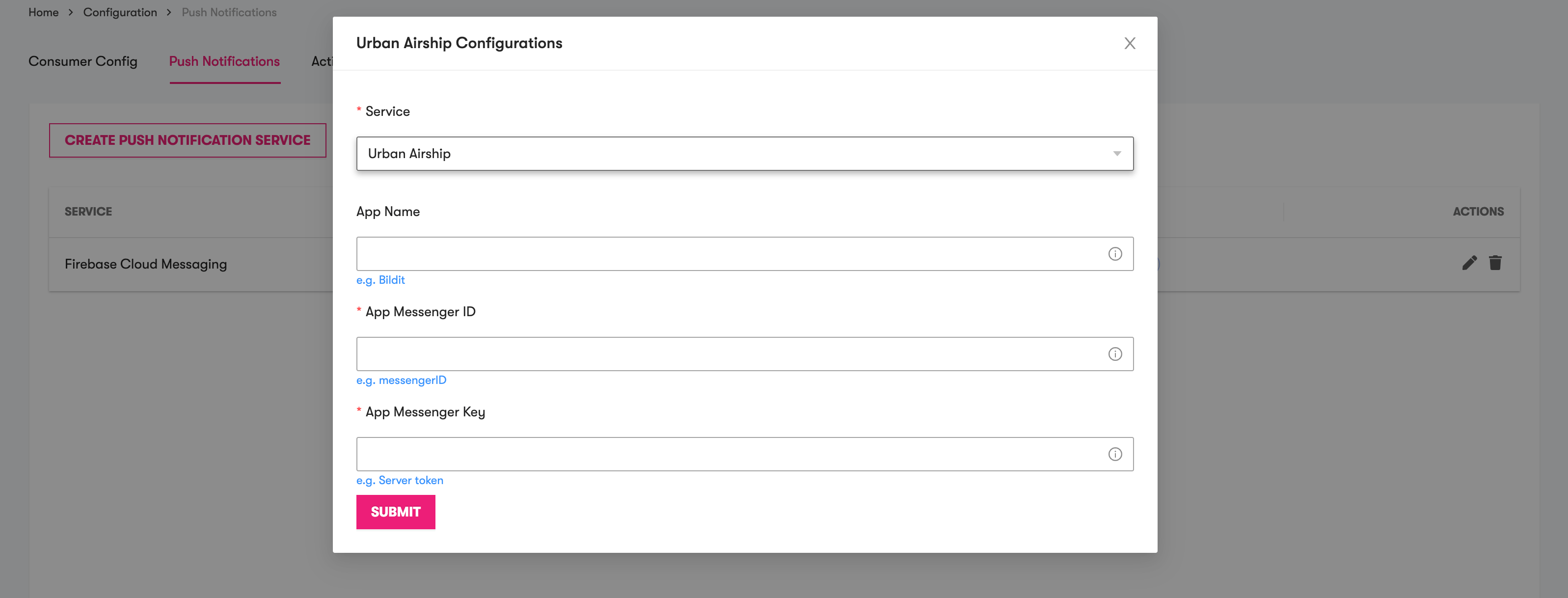
- On success, the configuration is added

Make sure that configuration is active if you have multiple configurations to use the Airship service
Editing Config for Airship
After following the steps above, if there is already an Airship push service in the list
- To edit Push Service Configuration. Click on the pencil icon from Actions.

- Airship modal will pop up with the update fields
- Make the changes you would like to update.
- Click on Submit.
BILDIT Visual Experience Engine allows ONLY ONE configuration per service to allow consistency for the app
Setting Active Push Service Configuration
If you have a list of push services, e.g., Airship and FCM, or OneSignal, or both and Airship is not the active Push Service. In this case you would wish to set it as active.
- Click on Set Active and on success you would notice the change with active tag.
