Apple Account
Create an Apple account
In case you don't have an Apple ID, you would need to create an Apple account:
- Go to Apple website to Create Your Apple ID
- Fill all the details and then select Continue
- Verify the email used and the phone number that you have used
- After you have successfully verified the details you will be directed to the manage account screen
Create an Apple developer account
To create an Apple account you would need to follow the steps below
- Sign in to your Apple account
- Go to Apple Developer Account site
- Select Apple Developer Program
- Select Enroll on the top right of the screen

- You will be directed to the next screen which will give details of What You Need To Enroll
- After reading What You Need To Enroll instructions and making a decision if you need to enroll as an Individual or an Organization, click on Start Your Enrollment
- You can download Apple developer app on the App Store to continue with the sign up on iPhone/iPad or you can Continue enrollment on the web
- You will be required to fill out the personal information then select Continue.
- Select the entity type for the developer account you wish to create then click Continue.
- On the legal agreement between your organization and Apple screen you can read the agreement.
- After reading and you agree to be bound by the Apple Developer Program License Agreement, you can tick the checkbox and click Continue
- On the Purchase the membership screen, confirm the details of the membership period and the membership amount then click Purchase
- After clicking Purchase you will be directed to Complete Your Order Screen where you will fill out your card details and address details and click Continue
- You will successfully create a developer account.
Generate APNS certificate for iOS Push Notifications
Apple Push Notification Service (commonly referred to as Apple Notification Service or APNS) is a platform service created by Apple Inc. that enables third party application developers to send push notifications to iOS users. You must have a Paid Apple Developer account to create certificates. Below are the steps to create .p12 certificate required to send push notifications.
Create an App ID
- Log in to your Apple Developer account
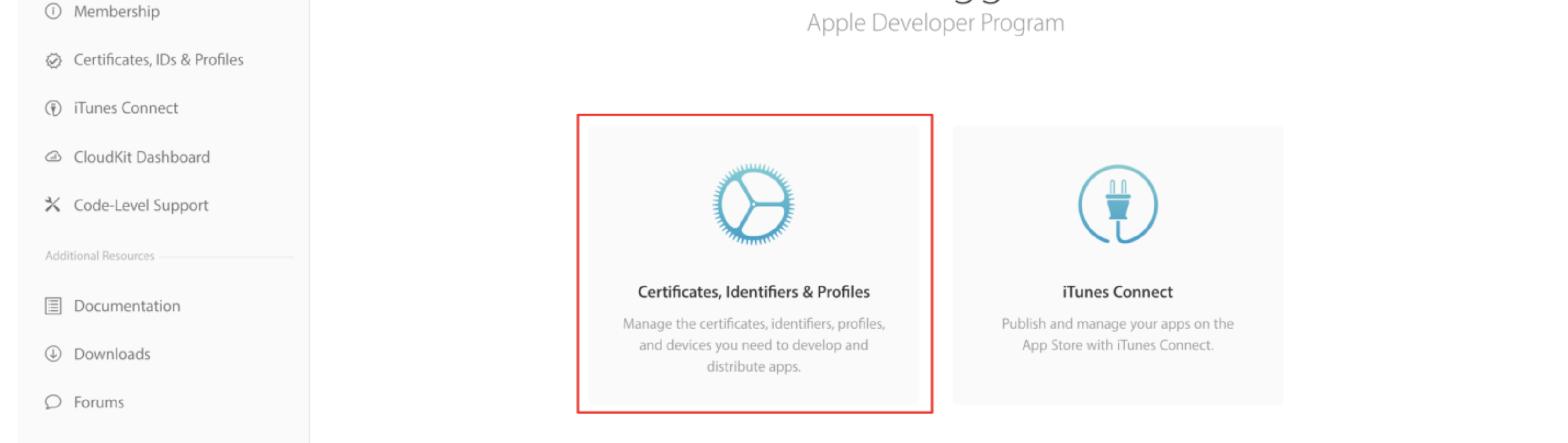
- Click Certificates, Identifiers and Profiles you will be directed to Certificates, Identifiers and Profiles screen
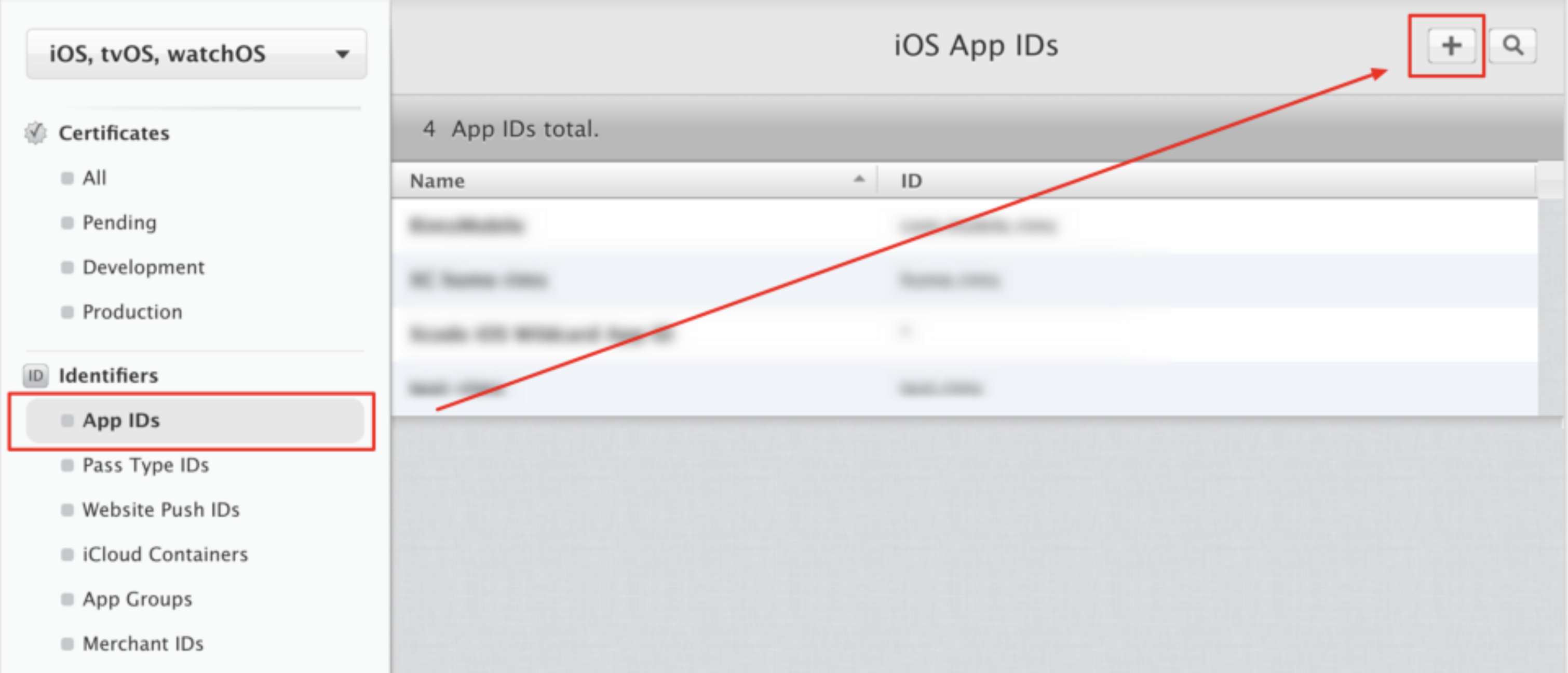
- Select iOS, tvOS, watchOS from the dropdown

- Select App IDs from the side menu and create a new App ID by clicking the add icon
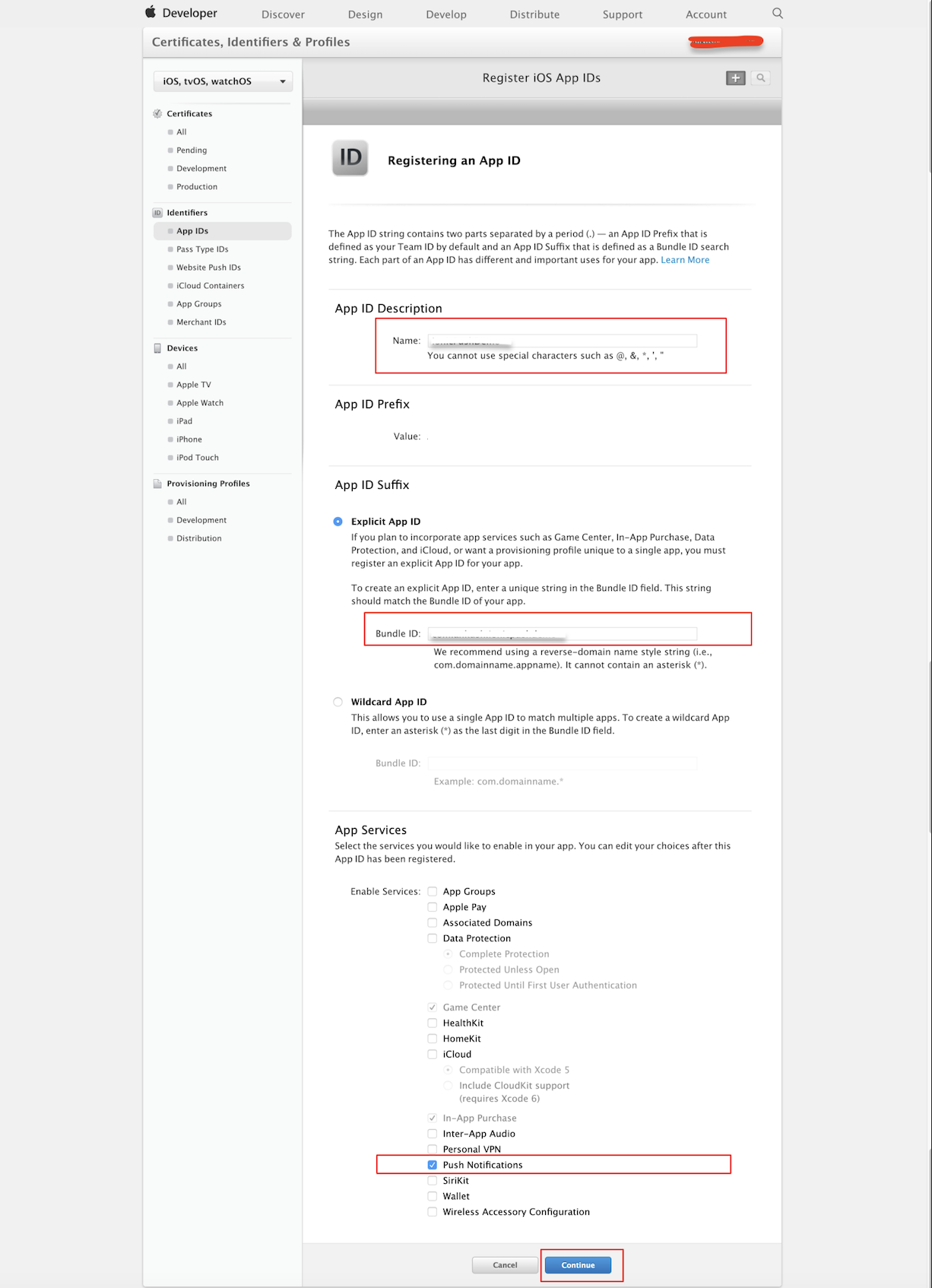
- Enter the App name, Bundle ID and select Push Notifications, then Continue
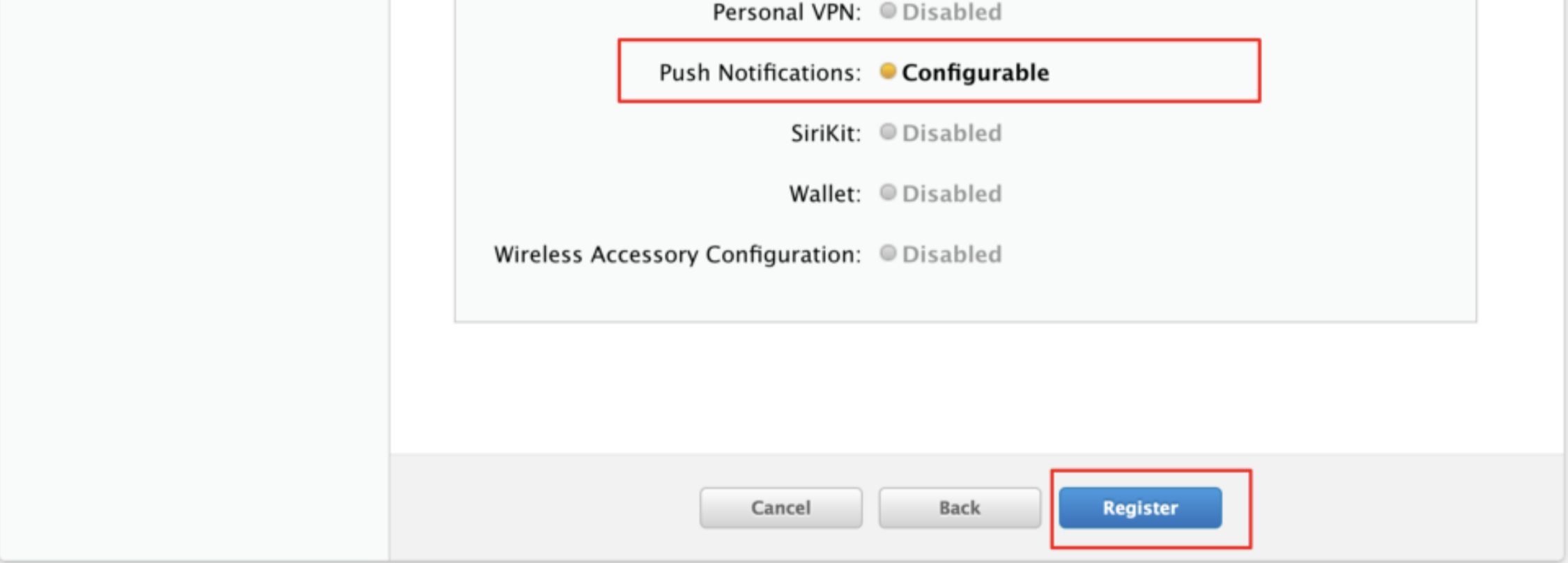
- After being directed to the next screen click Register, then Done to complete app registration
- Now, you can see the app listed in App IDs
Generate a Certificate from Keychain Access
Generating a certificate from Keychain Access requires macOS
- Open Spotlight by pressing Command ⌘+Space
- Search for Keychain Access and press on the app that pops up
- Launch the Keychain Access application in your macOS
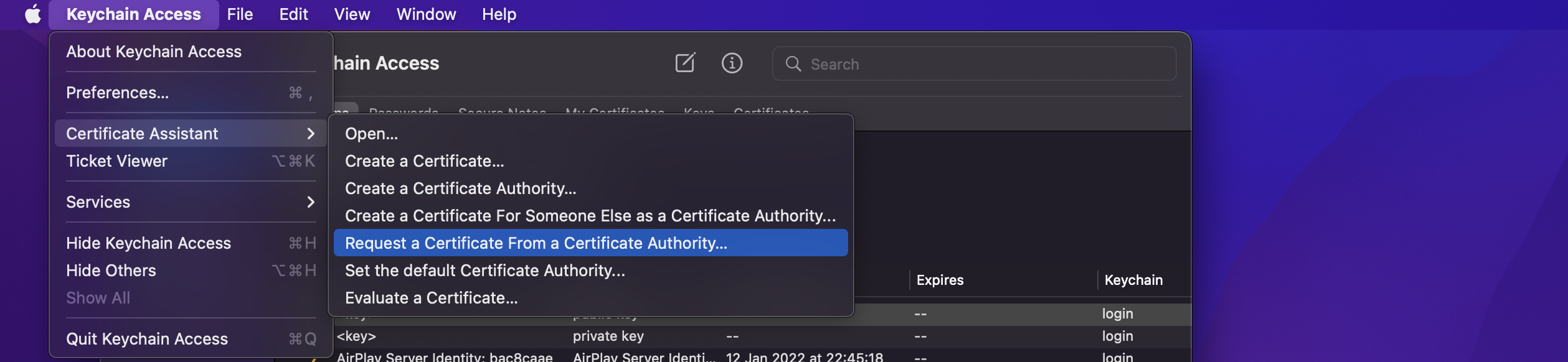
- After Keychain Access application opens up, on the Menu bar select Keychain Access > Certificate Assistant > Request a Certificate From a Certificate Authority
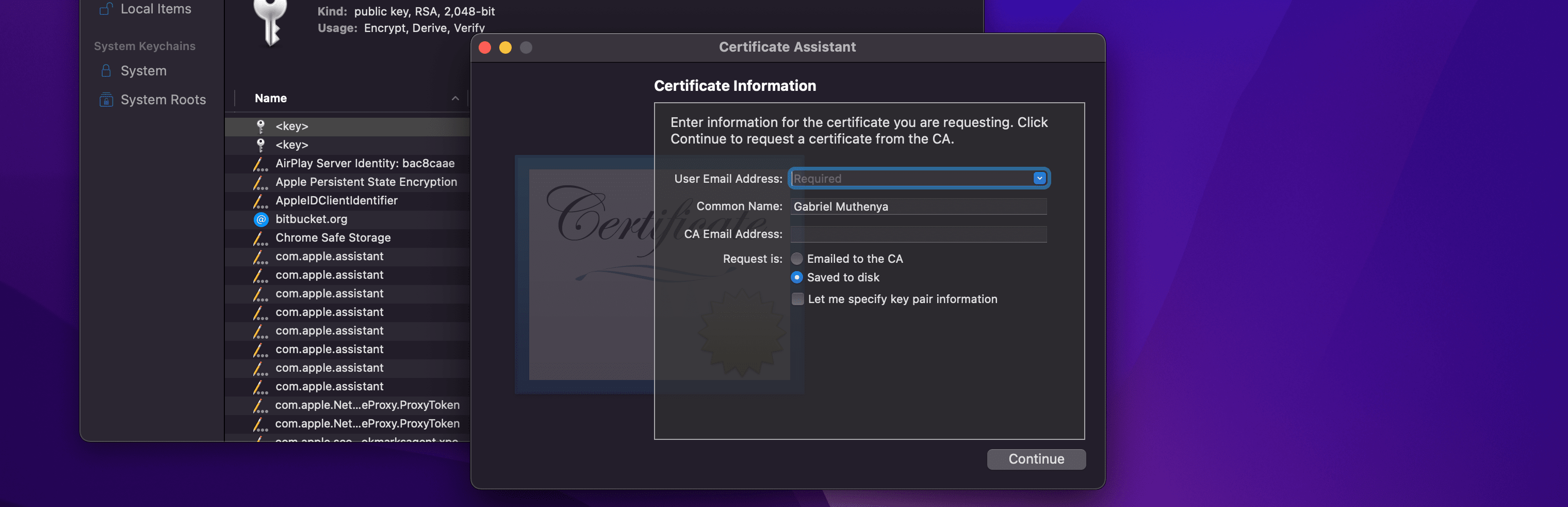
- Enter your email in the User Email Address field, check the Saved to disk option, then click Continue
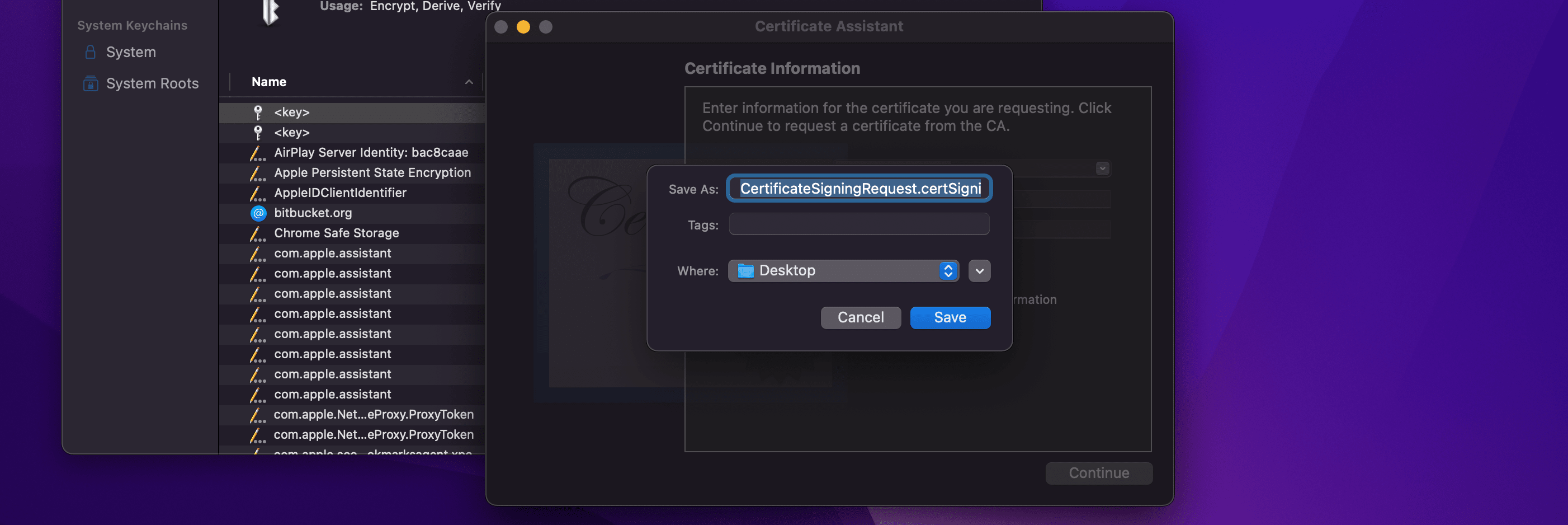
- On the Save As dialog that opens, confirm where to save and click Save
Generate a Development Certificate
- Go back to developer account and select app from App IDs and click Edit
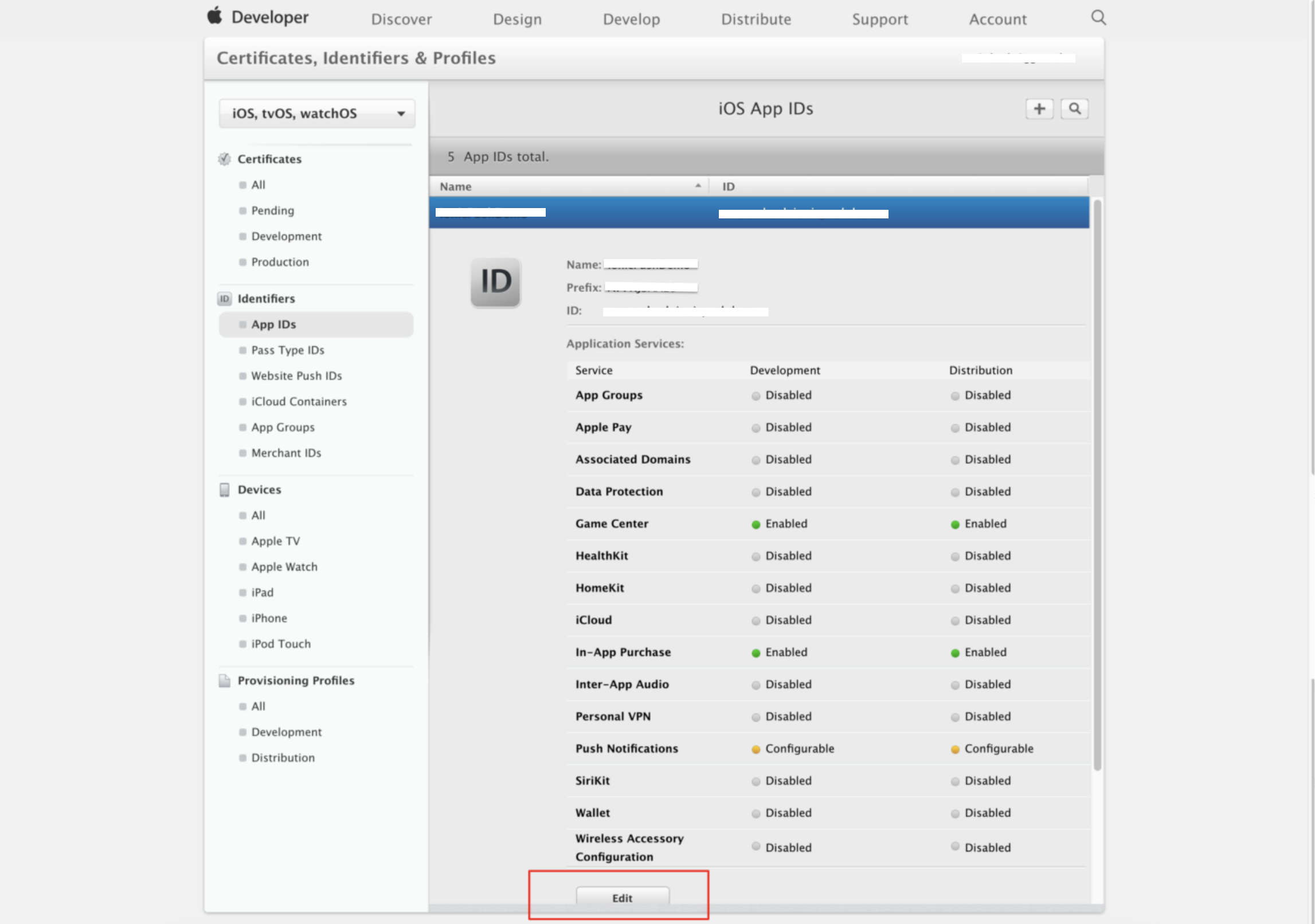
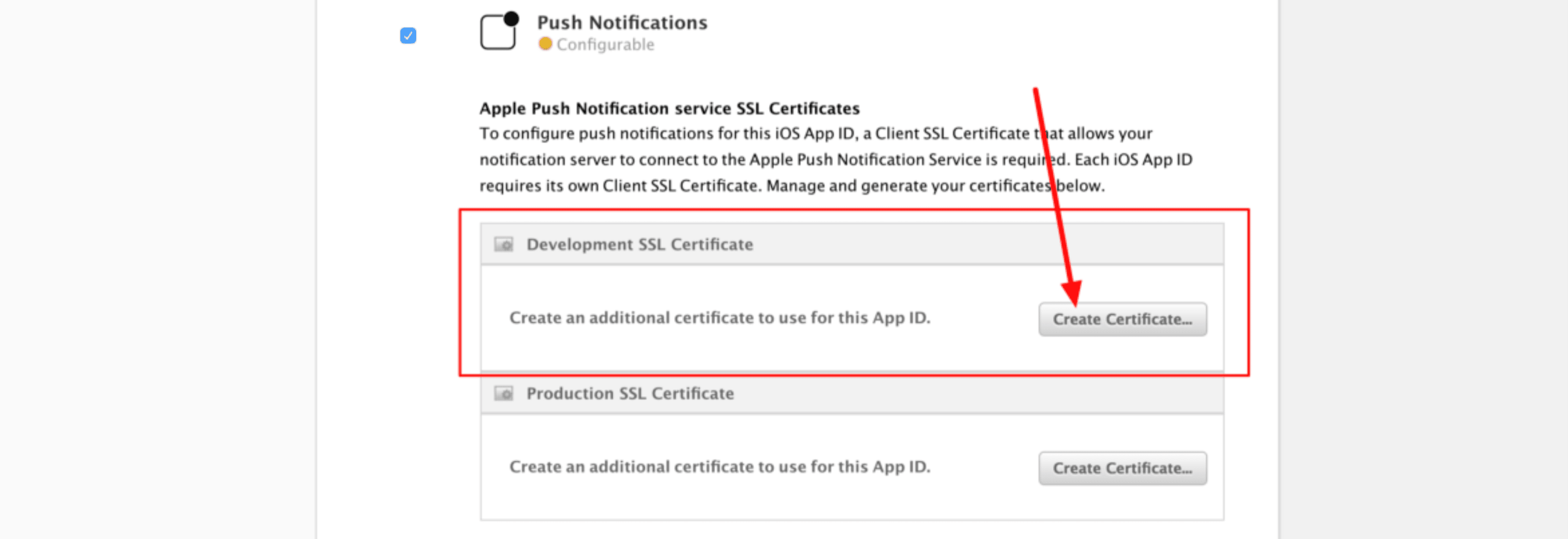
- Scroll down to Development SSL certificates and click Create Certificate
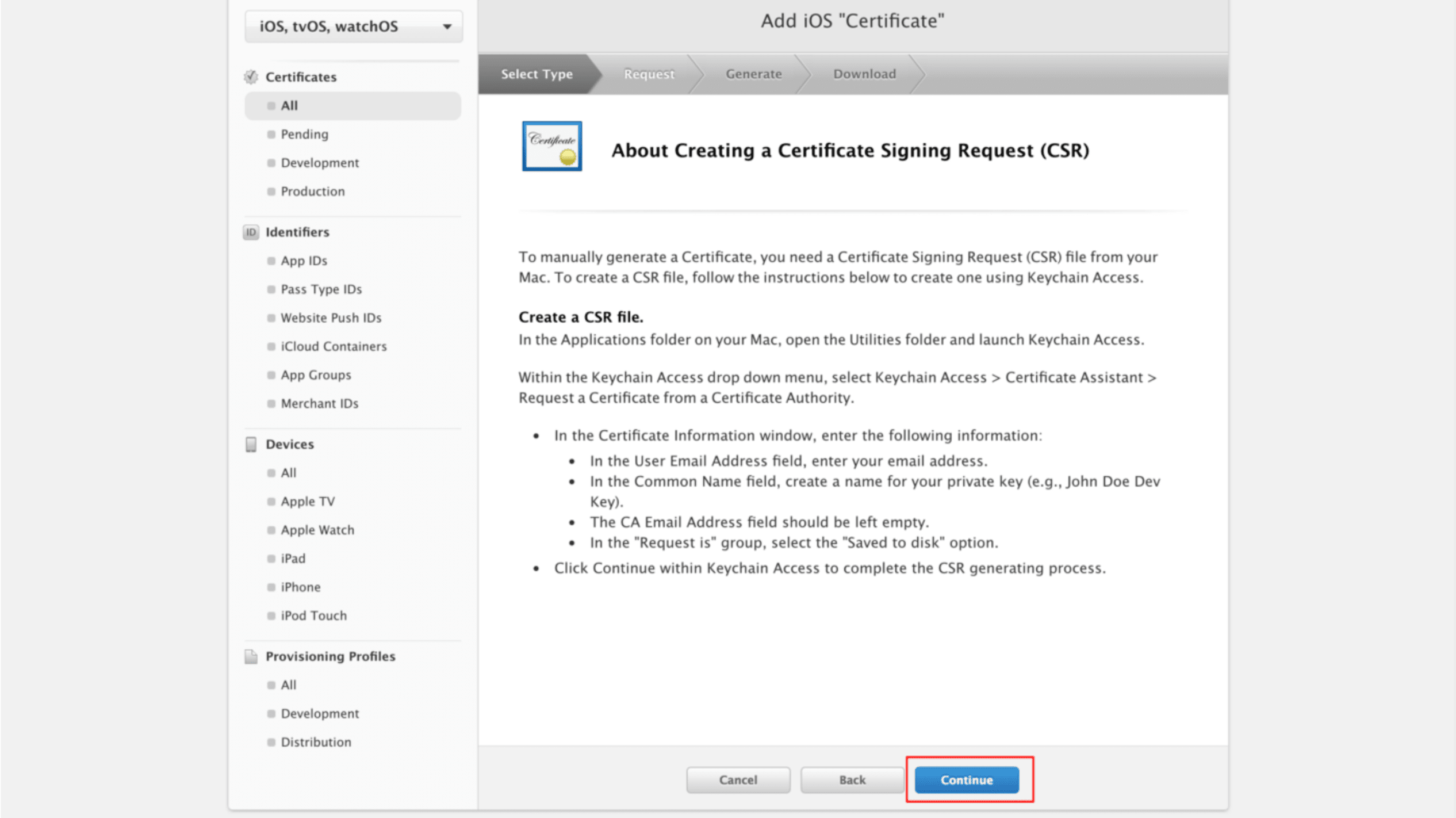
- On the Add iOS "Certificate" screen, click on Continue
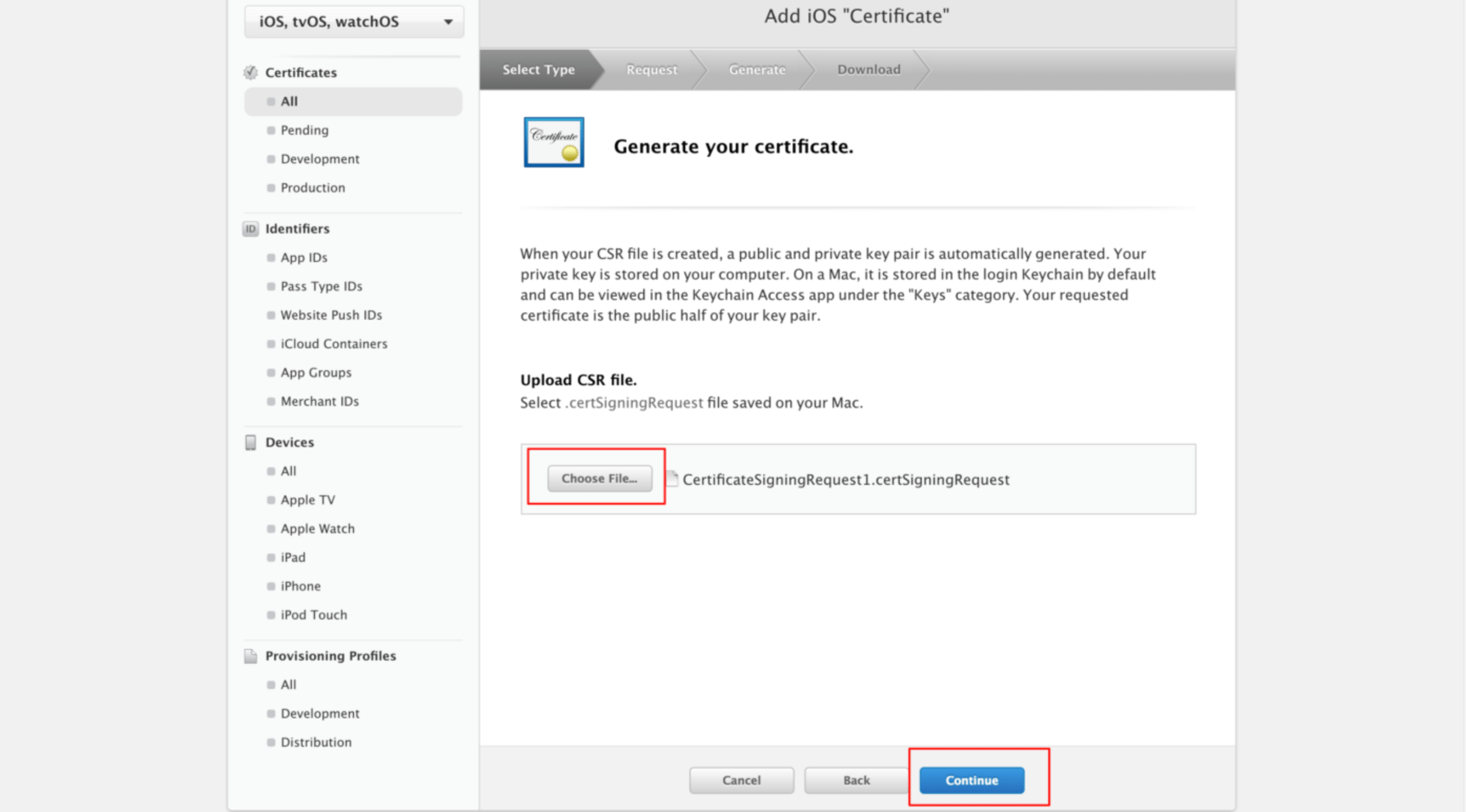
- Choose certificate file created from Keychain Access in previous section and click Continue
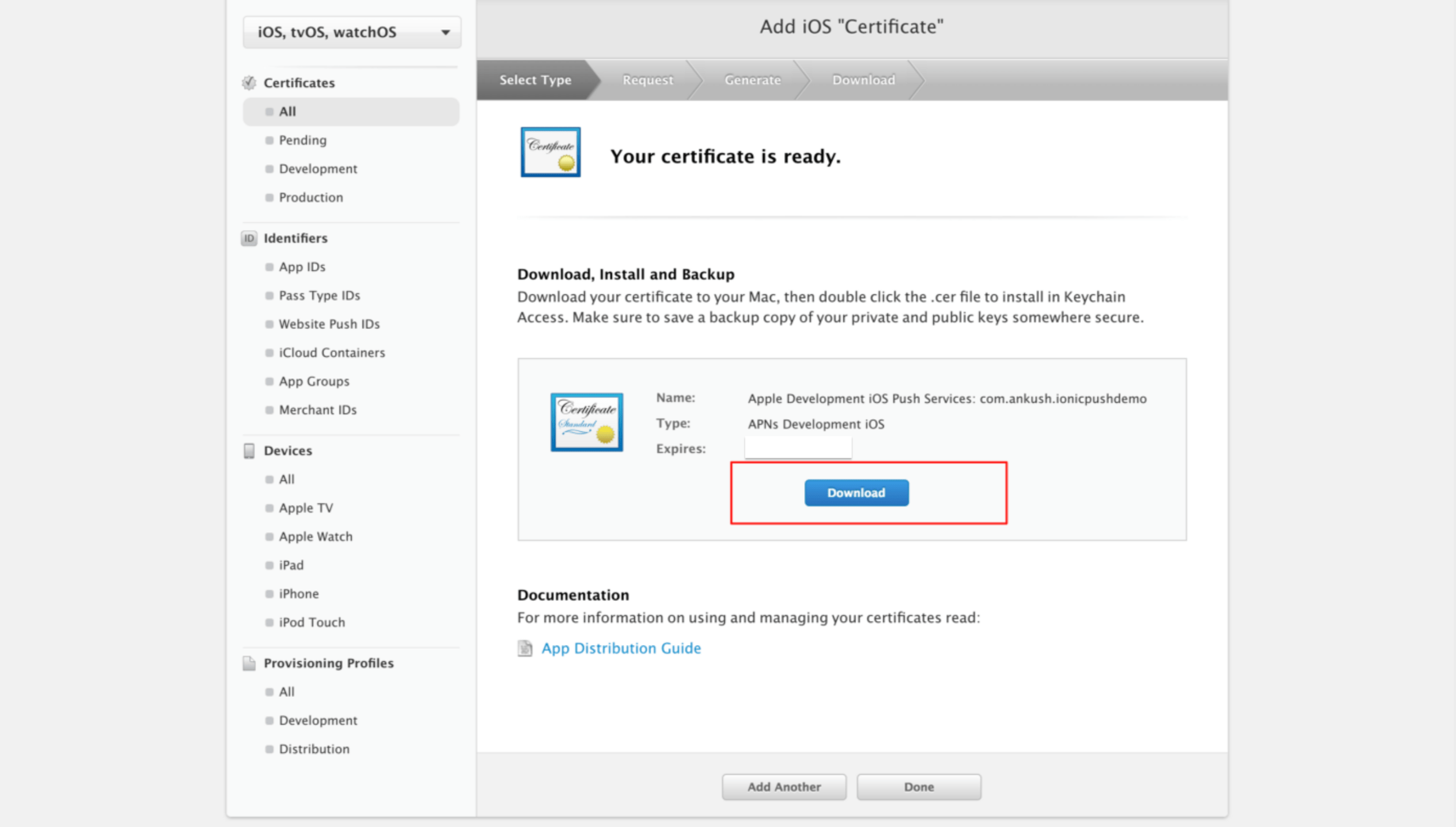
- Download Development Certificate and click Done to finish the process
Generate APNS .p12 certificate
Double-click the Development certificate generated in the previous step to add it to Keychain Access.
- Go to Keychain Access, select login keychain and My Certificate from side menu. Find app certificate and right-click to export it

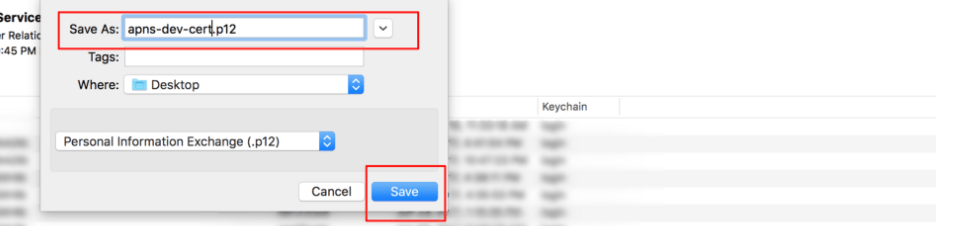
- Enter certificate name and click Save
- Enter Password for certificate and click OK
- Enter your computer admin password or fingerprint to finish the process
- The development .p12 certificate can be used to send push notifications.