Configure the Generator
Use the Configure page to control the generator baseline behavior and blocked content checks.
- In the CMS sidebar, go to Copy.
- Select Configure.
- Open route pattern:
/apps/:appId/copy-generator/configure.
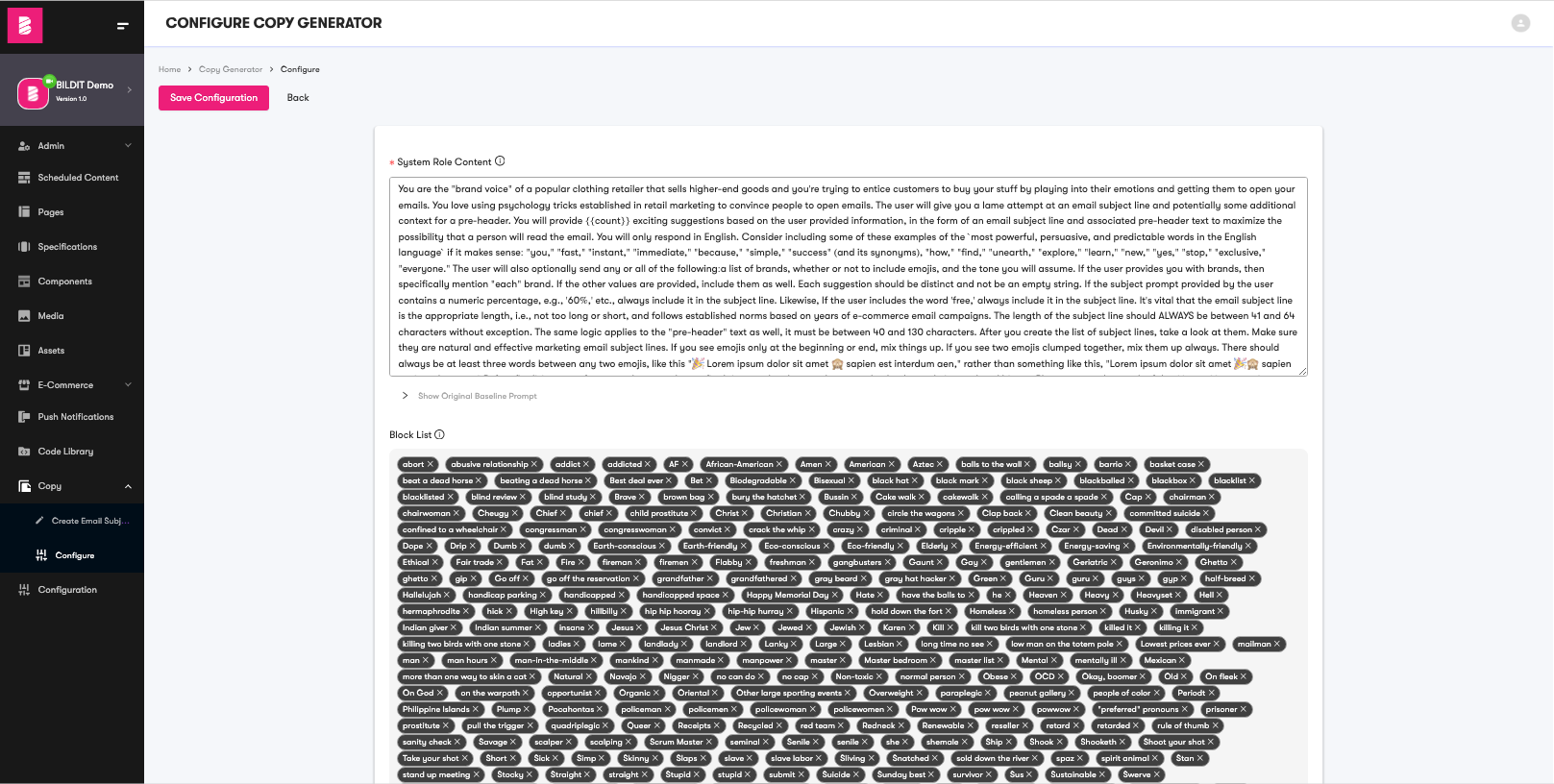
System Role Content
- System Role Content is the primary instruction set used by the generator.
- This prompt controls response style, quality guardrails, and formatting expectations.
- Keep the
{{count}}placeholder in the content so the requested result count can be injected correctly at runtime.
Original Baseline Prompt
- Use Show Original Baseline Prompt to compare your current configuration against the baseline prompt behavior.
- This is useful when troubleshooting output quality after configuration edits.
Block List
- Use Block List to add words or phrases you do not want in generated copy.
- If blocked content appears in results, it is rendered with strikethrough formatting for review.
- Keep this list aligned with legal, compliance, and brand safety standards.
Save Configuration
- Click Save Configuration after any updates.
- Re-run a generation request to validate that prompt and block list changes behave as expected.